Troubleshooting SMTP Port Connection Issues
Fix SMTP port and TLS connection problems fast: use ports 587/465/2525, verify DNS and TLS 1.2+, and correct auth to restore delivery.
SMTP connection problems can disrupt email delivery, but they’re fixable with the right steps. Here’s what you need to know:
- Common Issues: Blocked ports (e.g., Port 25), DNS failures, mismatched encryption protocols, and authentication errors (e.g., Error 535).
- Key Ports:
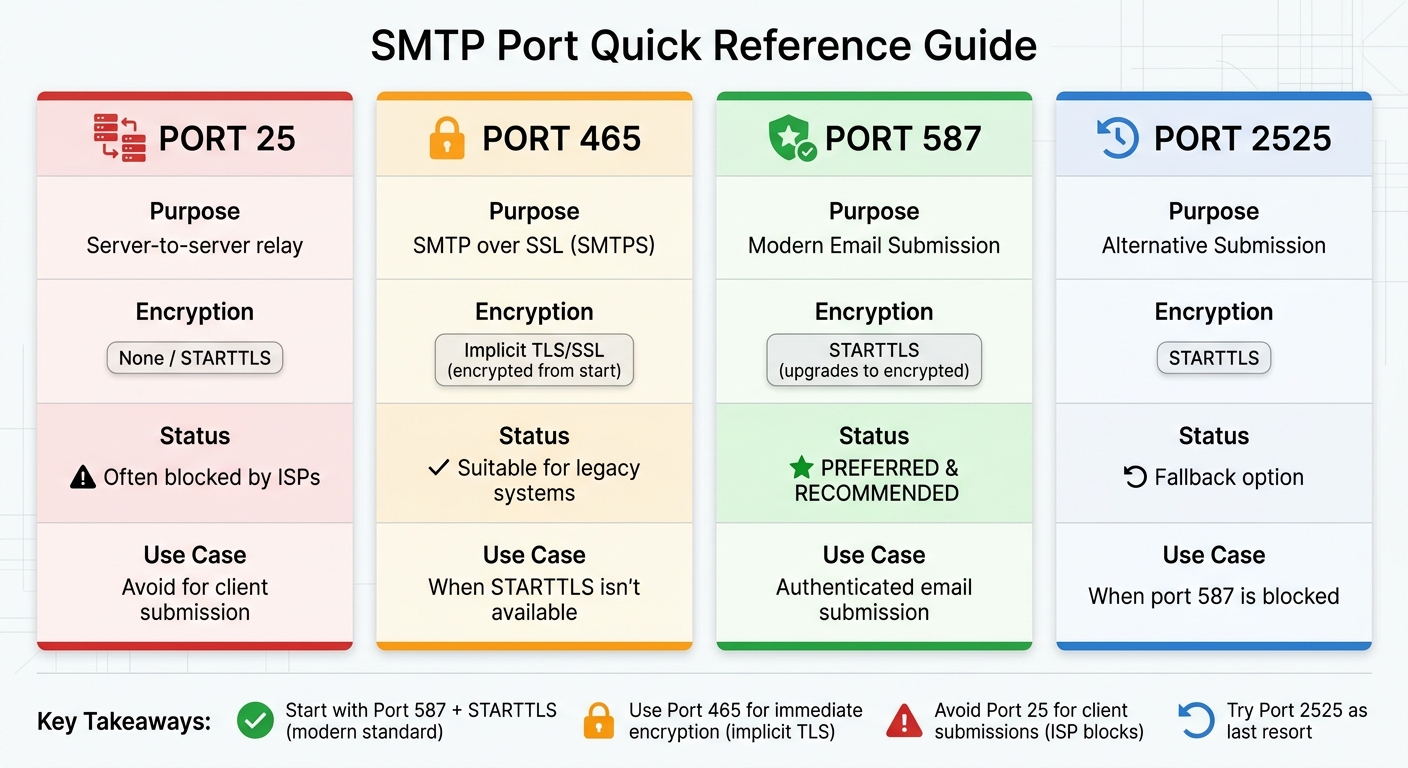
- Port 587: Preferred for modern email submission with STARTTLS.
- Port 465: Used for implicit TLS encryption.
- Port 25: Often blocked by ISPs; avoid for client submissions.
- Port 2525: Alternative if others fail.
- Troubleshooting Tools: Use Telnet, OpenSSL, Swaks, or online tools like MxToolbox to diagnose and fix issues.
- Encryption Tips: Match the correct encryption method to the port. Ensure TLS 1.2 or higher is supported.
- Firewall and ISP Blocks: Temporarily disable firewalls or switch networks to test connectivity. Many ISPs block Port 25 by default.
Pro Tip: If manual setup is overwhelming, services like Icemail.ai automate the process for $2/mailbox, ensuring reliable email delivery without hassle.
Keep reading for step-by-step guidance on diagnosing and resolving SMTP issues.
SMTP Port Comparison Guide: Ports 25, 465, 587, and 2525
How to Diagnose SMTP Port Connection Issues
Tools for Diagnosing SMTP Problems
When it comes to troubleshooting SMTP issues, a few key tools can make the process much easier.
Telnet is a classic go-to for testing basic connectivity on unencrypted ports like 25, 587, and 2525. It lets you manually input SMTP commands (like EHLO, MAIL FROM, RCPT TO) and see raw server responses. However, Telnet won't work on ports requiring TLS encryption - it'll either stall or throw an error.
For encrypted connections, OpenSSL is indispensable. It helps validate TLS handshakes and inspect certificate chains, whether you're working with implicit TLS (usually on port 465) or STARTTLS (commonly on ports 587 and 25). A "verify return code" of "0" means success, while codes like "10" or "20" can point to issues such as expired certificates or missing intermediates.
If you're looking for a more modern and versatile tool, Swaks (short for "Swiss Army Knife for SMTP") is a great choice. It handles complex tasks like TLS negotiation, multiple authentication methods (e.g., Plain, Login, OAuth2), and even supports attachments. Its clear separation of sent (>) and received (<) logs makes it much easier to read compared to Telnet. Netcat (nc) is another option, offering a simple way to check if a port is open without diving into a full SMTP handshake.
Online tools like MxToolbox, smtp-test.com, and GMass provide an external perspective. They can help identify ISP-level blocks and test for open relay issues. For Windows users, PowerShell's Test-NetConnection is handy for checking port reachability, while macOS users often use dscacheutil and nc for DNS and port diagnostics.
Once you've chosen the right tools, you can start testing your SMTP connectivity and pinpointing specific issues.
How to Test SMTP Connectivity
Testing DNS and port accessibility is crucial for narrowing down SMTP issues.
Start by verifying your DNS settings with tools like nslookup or dig to ensure your MX records resolve correctly. If the resolution points to a private IP (e.g., 10.x.x.x or 192.168.x.x), it could mean your VPN or corporate network is rewriting DNS settings.
Next, test the ports systematically. Begin with port 587, which is the modern default. If it's blocked, try port 465 for implicit TLS or port 2525 as an alternative. Use OpenSSL for these tests:
- For STARTTLS:
-starttls smtp -connect [host]:587 - For implicit SSL:
-connect [host]:465
A successful connection will return a "220" SMTP banner, confirming the service is active. If you're using Telnet, you can type EHLO [yourdomain] to check if the server supports STARTTLS. If STARTTLS is missing, it might mean a proxy is stripping encryption details.
When working with services like Gmail or Office 365, keep in mind that two-factor authentication might require an app-specific password. Also, if port 25 fails immediately - especially in environments like AWS or Azure - it often indicates the provider has blocked that port by default.
"Using Telnet can be helpful if you're having trouble sending or receiving messages because you can manually send SMTP commands to a messaging server." – Microsoft Learn
Reading Error Logs
Error logs are essential for diagnosing SMTP problems, complementing your connectivity tests with detailed insights.
SMTP errors are categorized using three-digit codes:
- 2xx: Success
- 3xx: More information needed
- 4xx: Temporary failures
- 5xx: Permanent errors
Enhanced status codes (formatted as X.Y.Z) provide even deeper context. For instance:
- 5.1.1: Non-existent recipient
- 5.7.8: Invalid authentication credentials
Some errors point to specific issues. For example, a connection timeout often means a firewall, ISP, or network route is blocking the port. A "connection refused" error, on the other hand, suggests the host is reachable, but the port is closed or the service isn't listening. If the expected SMTP banner ("220") doesn't appear, it could be due to a proxy or firewall interrupting the connection - or even a DNS resolution problem.
Enable verbose logging in your email client or SMTP library to capture the full communication, including authentication attempts and encryption negotiations. If your logs reveal that your SMTP host resolves to a private IP while public DNS records differ, it's likely your VPN or corporate network is rewriting DNS.
"A TLS handshake failure means the conversation never started. Your agent is talking to a wall." – Ian Bussières, CTO & Co-founder, LobsterMail
Once you’ve analyzed your logs, you’ll have the insights needed to address the underlying issues effectively.
sbb-itb-1cb964a
Step-by-Step SMTP Port Troubleshooting
Verify Server and Port Settings
After running your initial diagnostic tests, it's time to confirm that your server and port settings are correct. Check that the SMTP server hostname and port number align with the requirements of your email provider. A common error is using the wrong port for the encryption type. For instance, port 587 is typically used for authenticated email submission with STARTTLS, while port 465 is reserved for implicit SSL/TLS connections, which encrypt the connection right from the start.
You can test port reachability using command-line tools. On Windows, open PowerShell and run:
Test-NetConnection -ComputerName [SMTP_HOST] -Port [PORT]
Look for a TcpTestSucceeded result as "true." On macOS or Linux, try:
nc -vz -w 3 [SMTP_HOST] [PORT]
A "succeeded" message confirms the connection, whereas a timeout suggests the port might be blocked by a firewall or ISP. If you see "connection refused", the host is reachable, but the port isn't open.
To ensure DNS resolution is working, use:
nslookup [SMTP_HOST]
This should return a public IP address rather than a private one. A successful connection to the server should display a 220 greeting banner.
| Port | Purpose | Encryption Type | Recommendation |
|---|---|---|---|
| 25 | Server-to-server relay | None / STARTTLS | Often blocked by ISPs; avoid using for client submission. |
| 465 | SMTP over SSL (SMTPS) | Implicit TLS/SSL | Suitable for legacy systems or when STARTTLS isn't an option. |
| 587 | Modern Email Submission | STARTTLS | Preferred for authenticated email submission. |
| 2525 | Alternative Submission | STARTTLS | Use as a fallback if port 587 is unavailable. |
If everything checks out but you're still facing issues, it’s time to examine your firewall and antivirus settings.
Check Firewall and Antivirus Settings
If your connection times out, it’s likely that a firewall or antivirus program is blocking the request before it even reaches the server. This type of silent packet drop is a common culprit.
Start by temporarily disabling your local firewall or antivirus software to see if the connection works. If it does, add an exception for your email client or the specific SMTP ports (like 587 and 465) in your security software's settings. For Linux servers, run:
sudo firewall-cmd --list-ports
to view the currently allowed ports. If the required ports aren’t listed, add them with:
sudo firewall-cmd --permanent --add-port=587/tcp
Then reload the firewall with:
sudo firewall-cmd --reload.
If the issue persists, try connecting through a different network, such as a mobile hotspot. This helps identify whether the block is at the ISP or router level. Many ISPs and cloud providers (like AWS, Google Cloud, and Azure) block port 25 by default to prevent spam. Switching to port 587 or, if needed, port 2525, can often resolve these restrictions.
Configure Encryption and Protocols Correctly
Once you’ve confirmed the server is reachable and firewall settings are in order, double-check that your encryption protocols match the port you're using. Many connection failures stem from mismatched protocols. For example, port 465 requires immediate SSL/TLS negotiation (implicit TLS), while port 587 starts as plain text and upgrades to encryption via the STARTTLS command. If you attempt STARTTLS on port 465 or implicit SSL on port 587, the connection will fail.
You can verify STARTTLS support by connecting to port 587 using Telnet and running:
EHLO [yourdomain.com]
If the server supports STARTTLS, it should respond with 250-STARTTLS in the list of capabilities. If you don’t see this, a proxy or firewall might be interfering with encryption. In such cases, switching to port 465 ensures encryption begins immediately, bypassing potential interception.
"Port 587 is the modern standard for email submission from clients to servers. It requires authentication and supports both STARTTLS encryption and plain connections." - SMTP.com
To further test encryption, use OpenSSL:
- For STARTTLS on port 587:
openssl s_client -starttls smtp -connect [SMTP_HOST]:587 - For implicit SSL on port 465:
openssl s_client -connect [SMTP_HOST]:465
A successful connection will display Verify return code: 0 (ok). If you see errors like "wrong version number", it could mean your client is using an outdated TLS version. Modern servers typically require TLS 1.2 or higher, so ensure your client supports this.
All About SMTP Ports - Explained by Mailtrap
Solutions for Common SMTP Errors
Building on the diagnostic steps above, here are practical solutions for some of the most frequent SMTP errors.
Fixing Connection Timeouts and Port Blocks
A connection timeout usually means the server didn't receive your request. This often happens with port 25, which is blocked by default on major cloud platforms like AWS EC2, DigitalOcean, and Google Cloud to combat spam. To resolve this, switch to port 587 with STARTTLS encryption, the standard for modern email submissions. If both ports 25 and 587 are unavailable, try port 2525 as an alternative.
For detailed tests, refer to "Verify Server and Port Settings" to troubleshoot connectivity. If you still can't connect, disconnect from VPNs or corporate proxies, as they sometimes misroute SMTP hostnames to internal IP addresses instead of the public server. Additionally, some security tools may strip the STARTTLS capability from the server's response. In such cases, use port 465 for implicit TLS encryption.
Fixing Authentication Failures
Authentication errors are commonly flagged as error code 535 (invalid credentials) or error code 530 (authentication required, often due to missing TLS). Start by checking your username format. For example, Office 365 requires the full email address, while some other providers may only need the username before the "@" symbol. If you're using Gmail or Yahoo with two-factor authentication enabled, you'll need to create an app-specific password instead of using your regular password.
Make sure your client is configured to enable TLS before authentication. If you're encountering a 530 error, adjust your settings to use STARTTLS on port 587 or implicit TLS on port 465. For Microsoft 365 users, ensure "SMTP AUTH" is enabled for the mailbox in the admin settings. Even with correct credentials, features like "Security Defaults" or conditional access policies can block legacy SMTP authentication.
Once authentication is addressed, move on to resolving encryption-related issues to avoid TLS handshake failures.
Fixing TLS/SSL Mismatches
TLS handshake failures occur when the client and server can't agree on encryption protocols or certificates. A common issue is mismatched encryption methods: port 587 requires STARTTLS (starts unencrypted and upgrades), while port 465 requires implicit TLS (encrypted from the start).
To pinpoint the problem, use OpenSSL to test the connection. For port 587, run this command: openssl s_client -connect [SMTP_HOST]:587 -starttls smtp. A successful test will show verify return code: 0 (ok), while other codes may indicate expired or missing certificates. Ensure your client supports TLS 1.2 or higher, as older versions like TLS 1.0 and 1.1 are no longer accepted by modern servers. If your server uses Let's Encrypt or a similar service, include the intermediate certificates in your configuration to avoid "unable to get local issuer certificate" errors.
Tools and Services for SMTP Setup
Setting up and managing an SMTP infrastructure can feel overwhelming, but the right tools and services can make a big difference. Here’s a breakdown of some key options to simplify the process.
Diagnostic Utilities
When it comes to diagnosing SMTP issues, Swaks is a standout tool. It’s a command-line utility that covers everything from TLS and authentication to attachments and MIME construction. For secure connections, OpenSSL is essential - it validates TLS handshakes and certificate chains, especially on ports 465 (implicit TLS) and 587 (STARTTLS). If you’re working with unencrypted ports, Telnet remains a reliable option.
For quick checks, online tools like MxToolbox and smtp-test.com are invaluable. They help verify connectivity and ports in seconds. Additionally, utilities like Netcat and PowerShell's Test-NetConnection are great for instant troubleshooting. If you need to test email rendering or validate SPF, DKIM, and DMARC records, Mailtrap provides a sandbox environment for visual testing. Pricing starts at $17 per month, or $14 if billed annually.
After running diagnostics and verifying your setup, you might want to consider a service that handles everything for you - making ongoing management much easier.
Icemail.ai: Premium Email Infrastructure Solution
If troubleshooting feels like a constant cycle, a premium SMTP service can save time and effort. Icemail.ai is designed to simplify cold email campaigns by eliminating the need for manual SMTP setup. For just $2 per mailbox, the platform automates the entire process, including DKIM, DMARC, and SPF configuration, in roughly 10 minutes.
Icemail.ai bypasses common challenges like ISP port 25 blocks and TLS handshake issues, which were covered earlier. The service also integrates seamlessly with popular cold email tools like Instantly, Smartlead, ReachInbox, Lemlist, and Woodpecker. This ensures reliable deliverability without the hassle of managing a self-hosted SMTP server.
Icemail.ai vs. Alternatives
Here’s how Icemail.ai stacks up against a competitor like Zapmail.ai:
| Feature | Icemail.ai | Zapmail.ai |
|---|---|---|
| Pricing | $2 per mailbox | Higher/variable pricing |
| Setup Time | ~10 minutes | Slower, manual setup |
| Setup Process | Fully automated integrations | Manual SMTP/IMAP configuration |
| Infrastructure | Google & Microsoft mailboxes | Generic SMTP relay |
| Deliverability | Optimized for cold email | Requires manual warming/config |
Icemail.ai’s automated setup and optimized deliverability make it especially appealing for scaling cold email campaigns. Unlike alternatives, there’s no need to manually configure ports, test STARTTLS, or troubleshoot authentication across multiple mailboxes. If you’re looking for speed, ease of use, and consistent results, Icemail.ai is a clear winner.
Conclusion
SMTP port connection problems can disrupt email functionality, but they’re manageable with the right strategies. The foundation of reliable email communication lies in pairing ports with the correct encryption method - Port 587 with STARTTLS is the go-to for most modern applications, while Port 465 is ideal for implicit TLS. If your ISP blocks Port 25, switching to Port 587 or 465 can resolve connection timeouts.
Effective troubleshooting starts with a structured approach. Run connectivity tests, check DNS and TLS handshakes, and confirm credentials. For services like Gmail and Microsoft 365, where basic authentication is being phased out, use OAuth 2.0 or app-specific passwords for secure access.
To keep your email system running smoothly, regularly monitor SPF, DKIM, and DMARC records, as they play a key role in email authentication. Reviewing server logs can help you catch delivery issues early. Implement retry logic with exponential backoff to handle temporary server errors without triggering spam filters. Also, ensure your clients support TLS 1.2 or higher to meet today’s security standards. If this process feels overwhelming, consider using a premium service for easier management.
Once you’ve resolved recurring SMTP issues, a managed service can save time and effort. Tools like Icemail.ai simplify email infrastructure management. With a setup time of about 10 minutes, Icemail.ai is tailored for teams that need dependable email systems without the technical hassle. Its $2-per-mailbox pricing and integration with cold email tools make scaling simple. Compared to competitors like zapmail.ai, Icemail.ai stands out with faster inbox setup and consistent reliability, earning high praise from industry professionals.
Stick to Port 587 as your default, follow modern security practices, and leverage the right tools to ensure consistent email delivery. Whether you prefer hands-on troubleshooting or a managed service, these principles help ensure your emails reliably reach their destination.
FAQs
How can I tell if my ISP is blocking SMTP ports?
To figure out if your ISP is blocking SMTP ports, you can test connectivity using tools like telnet or netcat on ports 25, 587, or 465. If these connections fail, it could suggest a block. Alternatively, you can try diagnostic tools like Putty or check for error messages in your email client. If you consistently encounter issues across these methods, it’s a strong indication that your ISP might be blocking the port.
When should I use port 587 vs 465 for sending email?
Port 587 is the go-to standard for sending emails securely using STARTTLS, which ensures encrypted communication. In contrast, port 465 is considered a legacy option, used for implicit SSL/TLS connections and only when specifically mandated by your email provider. Stick with port 587 unless your provider explicitly instructs you to use port 465.
What’s the fastest way to confirm a TLS handshake issue?
To troubleshoot a potential TLS handshake problem, you can use tools like telnet or OpenSSL to test the SMTP connection on ports such as 465 or 587. Telnet is useful for verifying if the connection itself can be established, while OpenSSL’s s_client command goes a step further by analyzing the handshake process. This includes checking certificates and identifying any errors. These tools can help you determine whether the issue lies in the connection setup or during encryption negotiation.