SPF, DKIM, DMARC for Domain Reputation
Protect domain reputation and improve deliverability by implementing SPF, DKIM, and DMARC; monitor reports and fix common DNS errors.

Your domain's email reputation directly impacts whether your emails reach inboxes or get flagged as spam. To protect your reputation and improve email deliverability, implementing SPF, DKIM, and DMARC is essential. These protocols authenticate your emails, prevent spoofing, and align policies to ensure trust with email providers like Gmail and Yahoo.
Key Takeaways:
- SPF: Identifies authorized servers for sending emails on your domain.
- DKIM: Secures email content with cryptographic signatures.
- DMARC: Enforces policies, aligns SPF/DKIM with the "From" domain, and provides reporting on email activity.
Since February 2024, Google and Yahoo require SPF, DKIM, and DMARC for bulk senders (5,000+ emails daily). Without these, your emails risk being flagged as spam or rejected. A recent audit showed 67% of domains had critical authentication errors, often due to misconfigured DNS records.
Common Issues to Watch For:
- Exceeding SPF’s 10-DNS lookup limit.
- Multiple SPF records (only one is allowed).
- Misaligned DKIM selectors or inactive DKIM keys.
- DMARC policies left in monitoring mode (
p=none) without enforcement.
Action Plan:
- Set up SPF with a single TXT record listing authorized email servers.
- Enable DKIM with 2048-bit RSA keys for stronger security.
- Configure DMARC to start in monitor mode (
p=none), then move to quarantine (p=quarantine) and reject (p=reject) policies after verifying legitimate senders.
For businesses managing high email volumes or multiple domains, tools like Icemail.ai automate SPF, DKIM, and DMARC setup, saving time and reducing errors. Properly configured email authentication can boost inbox placement rates by 10–15%, ensuring your messages reach their intended audience.
How to Configure SPF, DKIM, and DMARC for Your Domain
sbb-itb-1cb964a
SPF, DKIM, and DMARC Basics
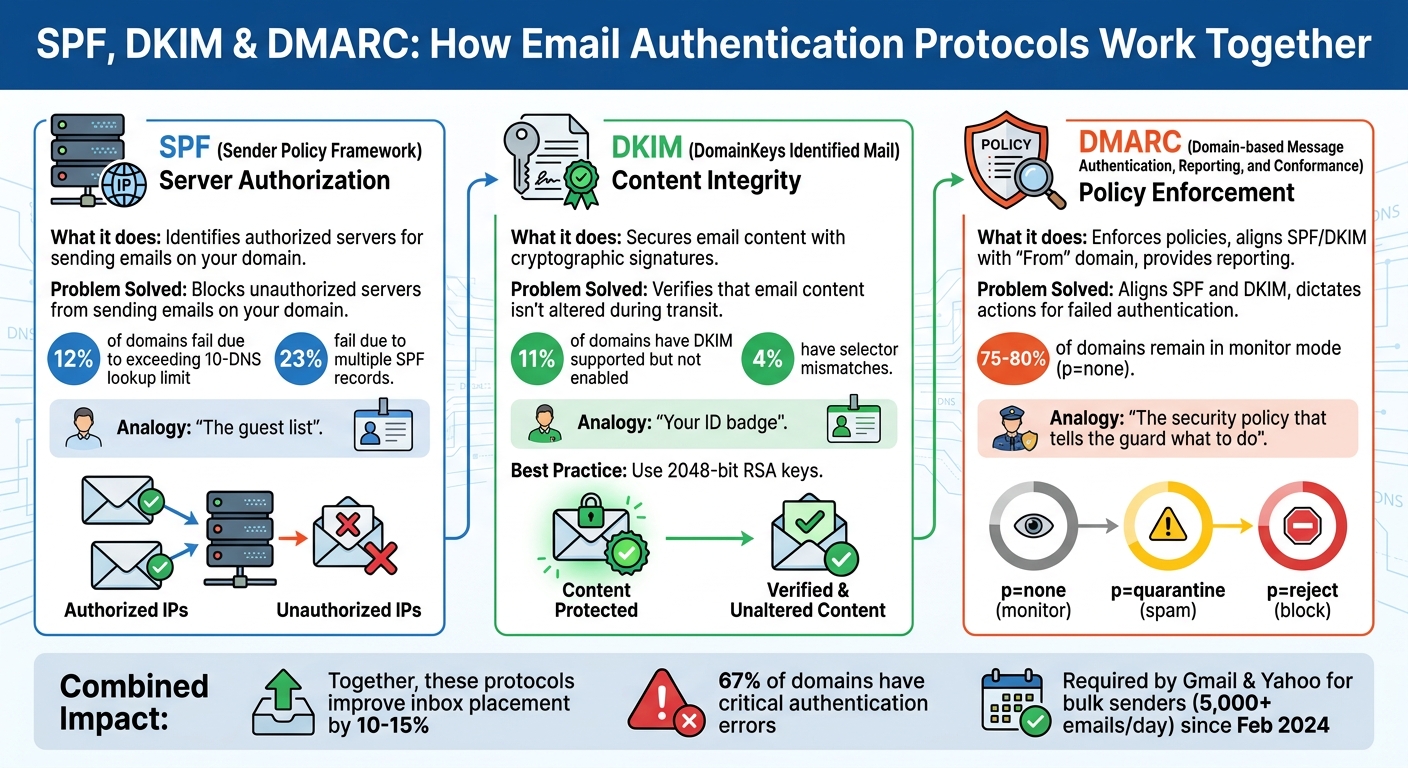
SPF, DKIM, and DMARC Email Authentication Protocols Comparison
Email authentication protocols address a major flaw in SMTP: its lack of built-in verification. Without these safeguards, anyone could send emails pretending to be from your domain. SPF, DKIM, and DMARC each focus on a different aspect of email security, working together to protect your domain from spoofing, phishing, and impersonation. By implementing these protocols, you can secure your email system and improve deliverability.
What is SPF (Sender Policy Framework)?
SPF helps verify which servers are allowed to send emails on behalf of your domain. It’s essentially a DNS record that lists approved sending sources. When a receiving server gets an email claiming to come from your domain, it checks the SPF record to confirm if the sending server’s IP is authorized. If it’s not, the email can be flagged or rejected. This process safeguards your domain from unauthorized use and helps maintain your reputation.
Some key points to remember:
- Your domain should have only one SPF TXT record; having multiple causes errors.
- Keep your SPF record within 10 DNS lookups; exceeding this limit breaks validation.
What is DKIM (DomainKeys Identified Mail)?
DKIM ensures that your email content remains unaltered during transit. It works by adding a cryptographic signature to your email headers. This signature is created using a private key on your mail server, and receiving servers use a public key (stored in your DNS records) to verify the signature. If the email has been tampered with, the signature won’t match, and the email fails verification.
Best practices for DKIM:
- Use 2048-bit RSA keys for stronger security. Major providers may reject 1024-bit keys.
- Any modification to the email content will invalidate the signature.
What is DMARC (Domain-based Message Authentication, Reporting, and Conformance)?
DMARC acts as the final layer, tying SPF and DKIM together by enforcing policies and providing visibility. It tells receiving mail servers how to handle emails that fail authentication - whether to allow them (p=none), send them to spam (p=quarantine), or reject them entirely (p=reject).
A crucial feature of DMARC is its ability to ensure alignment between the "From" header and the domain that passed SPF or DKIM checks. This alignment closes loopholes that attackers could exploit to bypass authentication.
DMARC also offers detailed reporting, giving you insights into who’s sending emails on your domain’s behalf. These reports help identify legitimate senders and detect abuse. However, it’s worth noting that 75% to 80% of domains with a DMARC record remain in monitor mode, which means they don’t fully enforce protections.
| Protocol | Primary Function | Problem Solved |
|---|---|---|
| SPF | Server Authorization | Blocks unauthorized servers from sending emails on your domain |
| DKIM | Content Integrity | Verifies that email content isn’t altered during transit |
| DMARC | Policy Enforcement | Aligns SPF and DKIM, and dictates actions for failed authentication |
"SPF is the guest list. DKIM is your ID badge. DMARC is the security policy that tells the guard what to do when someone doesn't have proper credentials." - Akash Bhadange, Co-founder, AutoSend
How These Protocols Protect Your Domain Reputation
Your domain reputation is a critical factor in determining whether your emails reach the inbox or end up in the spam folder. Email providers like Gmail, Yahoo, and Outlook rely on protocols like SPF, DKIM, and DMARC as indicators of trustworthiness. Without these protocols, your emails face a much tougher time getting delivered. These tools act as trust signals for ISPs, helping ensure your messages are verified and prioritized. In fact, senders with proper authentication enjoy inbox placement rates 10–15 percentage points higher than those without it. On the flip side, failing to implement these protocols can result in legitimate emails being flagged or blocked - 1 in 6 legitimate emails never make it to the recipient.
Between January 2025 and March 2026, MailDeck CTO Nikita Stoletov conducted an audit of over 1,000 domains. After fixing SPF configurations and implementing DMARC, these domains achieved a 98% inbox placement rate. Let’s break down how each protocol strengthens your email deliverability and security.
How SPF Improves Deliverability
SPF (Sender Policy Framework) helps prevent unauthorized servers from sending emails that appear to come from your domain. When a receiving server processes your email, it checks whether the sending IP address is on your approved list. A match means the email passes; if not, it fails. This verification reassures ISPs that your emails are legitimate, reducing the chances of being flagged as spam.
"SPF is the simplest of the three authentication protocols. It lets you declare which mail servers are authorized to send email on behalf of your domain by publishing a DNS TXT record." - SenderReputation.org
However, SPF isn’t foolproof. 12% of domains fail SPF validation due to exceeding the 10-DNS lookup limit, and another 23% fail because they have multiple SPF records, which breaks authentication entirely. To maintain a strong reputation, aim to keep your user-reported spam rate below 0.1% to 0.3% and your hard bounce rate under 2%.
While SPF focuses on verifying the sending server’s IP address, DKIM addresses the integrity of your email’s content.
How DKIM Secures Email Content
DKIM (DomainKeys Identified Mail) ensures that your email’s content remains unchanged during transit. It does this by adding a cryptographic signature to your message headers and body. Receiving servers use your public key (published in DNS) to verify the signature. If the content has been altered in any way, the signature fails, and the email doesn’t pass authentication.
DKIM works by signing key headers like From, Subject, and Date, offering recipients and mailbox providers assurance that the email they receive is exactly as you sent it. This added layer of trust is invaluable for maintaining credibility with both ISPs and end users.
How DMARC Enforces Authentication Policies
DMARC (Domain-based Message Authentication, Reporting, and Conformance) ties SPF and DKIM together, creating a unified policy for handling emails that fail authentication checks. You can configure it to monitor activity (p=none), send suspicious emails to spam (p=quarantine), or block them entirely (p=reject). DMARC also requires identifier alignment, meaning the visible "From" header must match the domain authenticated by SPF or DKIM. This alignment prevents attackers from spoofing your domain, even if they manage to bypass basic authentication.
"DMARC is the policy layer that ties SPF and DKIM together." - Emily Watson, Technical Writer and Developer Advocate, ZeonEdge
DMARC’s reporting feature gives you detailed visibility into every server sending emails on your behalf, showing which messages pass or fail authentication. Despite its benefits, 75% to 80% of domains with a DMARC record remain in monitor mode, leaving them vulnerable to attacks. Starting in February 2024, Google and Yahoo require DMARC for bulk senders (over 5,000 messages per day), with plans to expand this requirement to all senders by 2025.
How to Set Up SPF, DKIM, and DMARC
Setting up SPF, DKIM, and DMARC is a critical step to protect your domain reputation and ensure your emails reach the inbox. While it's essential to be precise, manual configuration mistakes are common, so take your time to follow these steps carefully.
Setting Up SPF Records
Start by listing every service that sends emails on your behalf. This could include platforms like Google Workspace, Microsoft 365, CRMs, marketing tools, helpdesk software, or any third-party email service providers (ESPs). Once you have this list, create a single TXT record in your DNS settings. SPF records always start with v=spf1, followed by include: entries for each authorized service. For example:
v=spf1 include:_spf.google.com include:spf.protection.outlook.com -all
Important: Only create ONE SPF record. Having multiple SPF records is a frequent error, affecting 23% of audited domains and causing authentication to fail.
Keep in mind the 10 DNS lookup limit. Each include:, a:, mx:, or redirect= mechanism counts toward this limit. Exceeding it can cause silent authentication failures. To avoid this, use ip4: or ip6: mechanisms whenever possible, as they don't count toward the lookup cap. End your record with -all for a hard fail (recommended for established domains) or ~all for a soft fail during testing.
| SPF Mechanism | Meaning | Recommendation |
|---|---|---|
-all |
Hard fail: Reject unauthorized senders | Use for established domains |
~all |
Soft fail: Mark as suspicious | Use during initial setup |
+all |
Allow all: Disables SPF protection | Never use |
Once your SPF record is set, move on to DKIM to secure email content.
Generating and Publishing DKIM Keys
DKIM setup involves two key steps: configuring it in your email provider's admin console and updating your DNS settings. Log into your email provider's admin panel (e.g., Google Admin for Google Workspace or Exchange Admin Center for Microsoft 365) and navigate to the authentication section. Generate a public/private key pair - your provider keeps the private key for signing, and you publish the public key in your DNS.
Your provider will supply a selector (e.g., google._domainkey or selector1._domainkey) and the corresponding key value. Add a DNS TXT or CNAME record with the provided hostname and key. Always choose 2048-bit RSA keys over the older 1024-bit standard for enhanced security - this may need to be manually enabled in Google Workspace.
DNS changes can take anywhere from 1 to 48 hours to propagate. Once that's done, go back to your email provider's dashboard and activate DKIM by clicking "Start Authentication" or "Enable DKIM." If you're using multiple email services, assign unique selectors for each one to manage keys independently.
With SPF and DKIM in place, the next step is to configure DMARC for unified policy enforcement.
Configuring DMARC Policies
DMARC ties SPF and DKIM together by defining how to handle emails that fail authentication checks. To set it up, create a TXT record at _dmarc.yourdomain.com with the following value:
v=DMARC1; p=none; rua=mailto:[email protected]
The p=none policy starts in monitor mode, meaning no emails are blocked - it simply collects reports.
"Start with p=none, review your DMARC reports for 2-4 weeks to identify all legitimate email sources, then gradually move to quarantine and finally reject." - SenderReputation.org
Monitor these reports for 2–4 weeks to ensure all legitimate senders are authenticated. Once you're confident, switch to p=quarantine, which sends suspicious emails to the spam folder, for another 2–4 weeks. Finally, move to p=reject to block unauthenticated emails entirely.
The rua= tag specifies where to send XML reports about email authentication. These reports help identify unauthorized senders and detect configuration issues before they affect deliverability. Remember, DMARC requires alignment, meaning the domain in the visible "From" header must match the domain authenticated by SPF or DKIM.
| DMARC Policy | Action on Failure | Recommended Use Case |
|---|---|---|
p=none |
None (delivered to inbox) | Use during the monitoring phase |
p=quarantine |
Delivered to Spam/Junk folder | Use after validating email sources |
p=reject |
Message is blocked/rejected | Use for full domain protection |
For organizations managing multiple domains or handling high email volumes, tools like Icemail.ai simplify the process. These platforms automate SPF, DKIM, and DMARC setup with one-click solutions, significantly reducing the time and effort required - especially helpful when scaling email systems across numerous mailboxes.
Common Setup Mistakes and How to Fix Them
Even seasoned administrators can make small authentication missteps that disrupt email deliverability without obvious signs. A review of over 1,000 domains revealed that 67% had critical authentication errors. Below are some of the most frequent misconfigurations and how to address them.
SPF Lookup Limit Exceeded
One of the most common SPF issues is exceeding the 10-lookup limit, which impacted 12% of audited domains. Each include:, a:, mx:, or redirect= mechanism in your SPF record counts as a DNS lookup. Going over this limit results in a "PermError", which email providers like Gmail and Outlook consider a hard failure.
"PermError is the silent killer. It happens when your SPF record exceeds 10 DNS lookups and gets treated as a hard failure by receiving servers." - Litemail
To fix this:
- Flatten your SPF record: Replace
include:mechanisms with directip4:orip6:addresses, which don’t count toward the limit. Tools like AutoSPF or dmarcly.com can help automate this process. - Consolidate services: If you use multiple marketing platforms, CRMs, or ESPs, consider combining them or using subdomains to split email streams across separate SPF records.
| Mechanism | Counts Toward Limit? | Best Practice |
|---|---|---|
include: |
Yes | Replace with IP addresses when possible |
a: / mx: |
Yes | Use only if IPs change frequently |
ip4: / ip6: |
No | Preferred method to stay under the limit |
Another common issue is having multiple SPF records, which affected 23% of audited domains. DNS allows only one SPF TXT record per domain. To resolve this, merge all include: statements into a single record that starts with v=spf1 and ends with -all. Fixing these errors helps maintain a strong domain reputation.
DKIM Selector Mismatches
A DKIM selector mismatch occurs when the DNS record name and the server's signing selector don’t align. This causes verification failures because the receiving server retrieves the wrong public key. Around 4% of domains face this issue, while 11% have DKIM supported but not enabled.
"The DKIM DNS record uses a selector that doesn't match what the email server is signing with. The receiving server looks up the wrong public key, signature verification fails." - Nikita Stoletov, CTO, MailDeck
To prevent this:
- Send a test email to Gmail and use "Show original" to check if DKIM shows "PASS" or "FAIL." Alternatively, use tools like mail-tester.com or MXToolbox DKIM Lookup.
- Ensure the DNS hostname (e.g.,
selector1._domainkey.yourdomain.com) matches the selector name provided by your email service.
Whenever possible, use CNAME records instead of copying the public key into a TXT record. CNAMEs allow automatic key rotation, ensuring your setup stays up-to-date if your provider changes their private keys. If you’re limited to TXT records, verify that the full key value is published, as some DNS providers truncate longer keys. Testing your setup is essential before moving on to DMARC alignment.
DMARC Alignment Issues
DMARC acts as an enforcement layer, ensuring SPF and DKIM align with the domain listed in your "From" header. For example, if your ESP authenticates SPF for [email protected] but your "From" address is [email protected], SPF alignment will fail.
"DMARC doesn't just check if SPF and DKIM pass. It checks if they pass and align with the From domain. This is a critical distinction." - Akash Bhadange, AutoSend
Here’s how to address alignment issues:
- Prioritize DKIM alignment: Configure your ESP to sign emails with your domain (
d=company.com) rather than the ESP’s domain. - Fix SPF alignment: Set up a custom Return-Path through your ESP. This typically involves adding a CNAME record to match the envelope sender domain with your "From" domain.
Use relaxed alignment (aspf=r and adkim=r) in your DMARC policy unless you require strict security. Relaxed mode allows subdomains to match the root domain, reducing alignment failures when sending emails from addresses like mail.company.com while using company.com in the "From" field. Before enforcing stricter policies, monitor DMARC aggregate reports (RUA) for 2–4 weeks to identify and resolve alignment failures.
Icemail.ai: Automated Email Authentication Setup
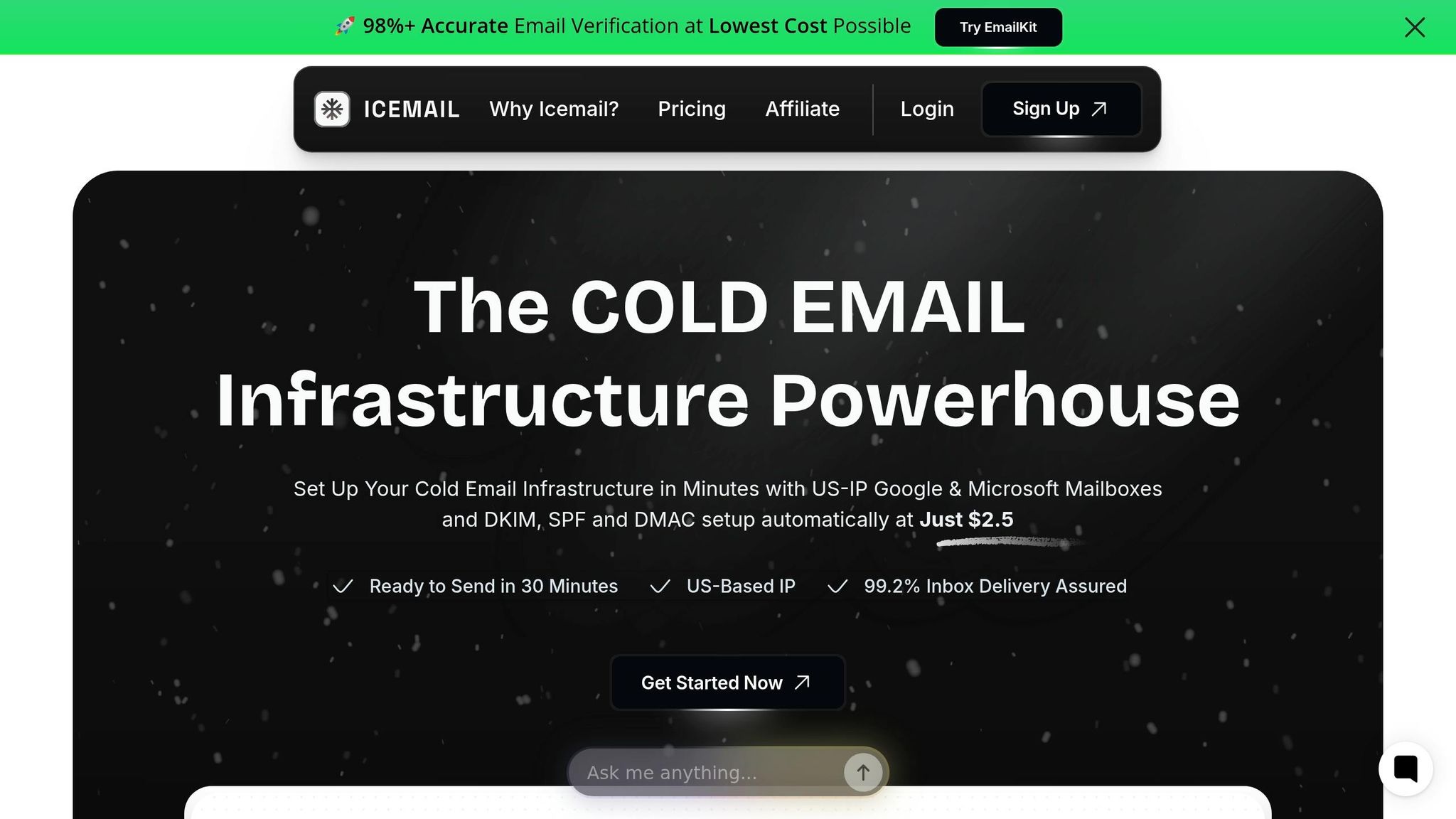
Setting up email authentication manually can be tricky - especially when it comes to DNS configuration. Many setups fail due to errors that aren’t automatically corrected. That’s where Icemail.ai steps in. This platform automates the setup for SPF, DKIM, and DMARC, reducing risks and simplifying the process.
Why Choose Icemail.ai?
Icemail.ai makes onboarding a breeze with a 10-minute setup process. It handles everything from workspace creation to mailbox provisioning and authentication setup automatically. With a reported 99.2% inbox delivery rate, it’s trusted by over 1,000 agencies and companies. Unlike manual methods, Icemail.ai’s automated DNS management ensures that configuration issues don’t disrupt deliverability.
"The automated setup for Google Workspace accounts, including DKIM, SPF, and DMARC configuration, saved me hours of work." - Suprava Sabat, AcquisitionX
Another big perk? Icemail.ai offers unlimited free mailbox replacements, so your campaigns won’t get derailed by unexpected costs.
Features for Scalable Email Infrastructure
Icemail.ai is built for scale. Here’s what it offers:
- Bulk Mailbox Purchases: Buy mailboxes for Google Workspace or Microsoft accounts at a flat rate of $2.50 per mailbox.
- Domain Finder: Quickly set up domains with this tool.
- Autofill for Configuration: Speeds up setup when managing multiple mailboxes.
- Separate Workspaces: Ideal for agencies, as it allows independent client management.
- Masterinbox: Provides centralized control over all mailboxes.
For seamless integration, Icemail.ai includes a 1-click export feature that works with outreach tools like Smartlead and Instantly. API access is also available, enabling automated domain provisioning and DNS updates.
Icemail.ai vs. Zapmail.ai: A Comparison
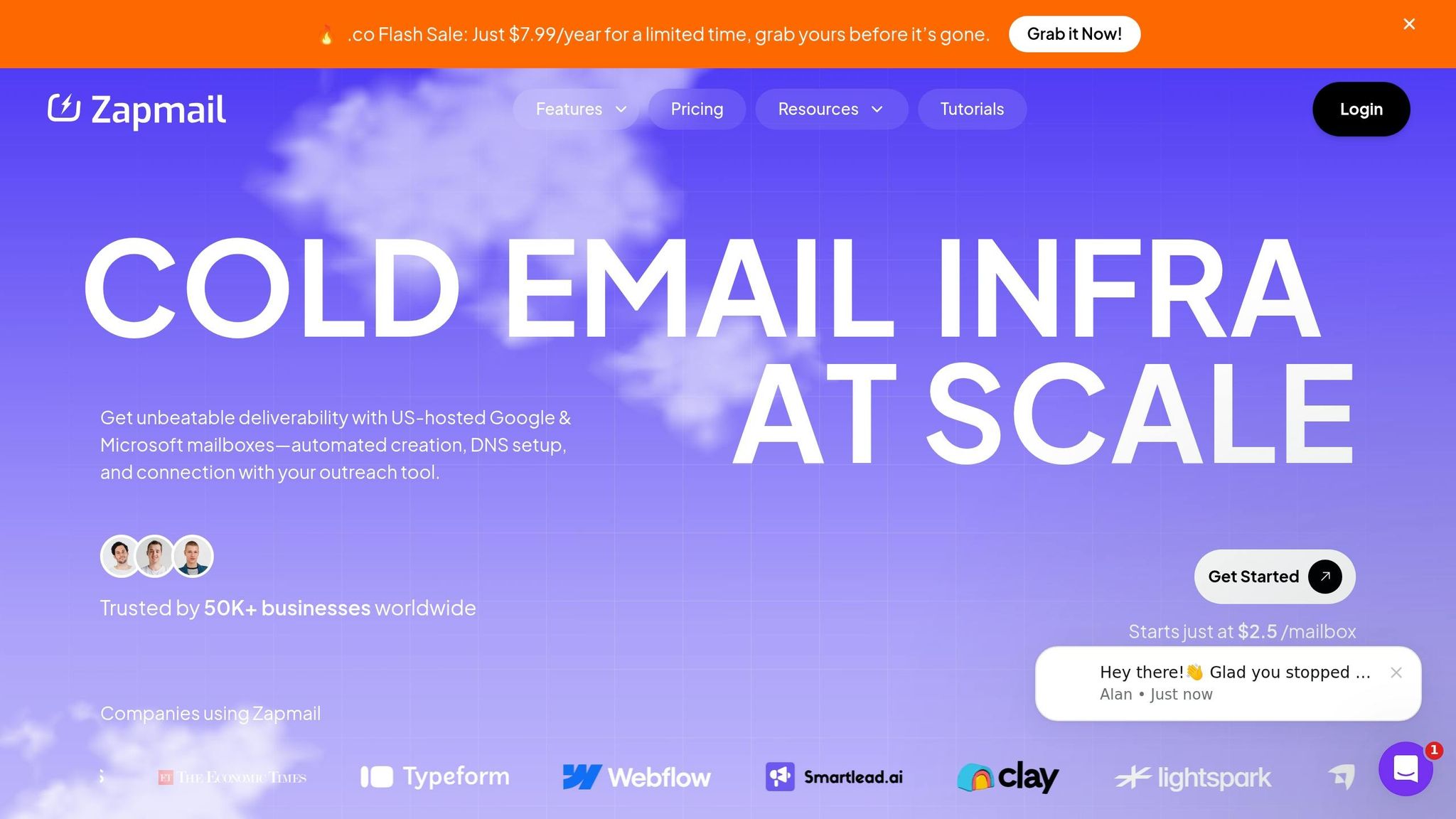
When compared to competitors like Zapmail.ai, Icemail.ai consistently comes out ahead. Here’s a quick breakdown:
| Feature | Icemail.ai | Zapmail.ai |
|---|---|---|
| Mailbox Price | $2.50/month | Starts at $3.90/month |
| Setup Time | 10 minutes | 5–10 minutes |
| Mailbox Replacements | Unlimited and free | Costs apply |
| Google/Microsoft Partnership | Official partnership | No official partnership |
| Inbox Delivery Rate | 99.2% | Not disclosed |
| TrustPilot Rating | Not disclosed | 4.5/5 |
Pricing is where Icemail.ai really shines. For example, 100 mailboxes cost $250/month with Icemail.ai, while Zapmail.ai’s Pro Plan charges $299/month for the same number.
Additionally, Icemail.ai’s workspace structure is a game-changer for agencies. By isolating each client’s infrastructure, it protects against account bans and ensures domain reputation stays intact. If you’re serious about cold email campaigns, Icemail.ai provides the tools and reliability you need to succeed.
Monitoring and Maintaining Your Email Authentication
Keeping your email authentication intact requires ongoing monitoring and timely DNS updates. As your email infrastructure evolves - whether through adding new marketing tools, switching providers, or increasing sending volume - errors can creep in. These mistakes can silently disrupt authentication and harm your domain's reputation. A study of over 1,000 domains between January 2025 and March 2026 revealed that 67% had at least one critical authentication error.
Using DMARC Reports
DMARC reports are a powerful way to assess your email authentication's performance. By setting up DMARC, you can use the rua tag to specify where aggregate XML reports should be sent. These reports reveal which emails pass or fail authentication and identify the services sending emails on your behalf.
Start with a p=none policy for 2–4 weeks to gather data. This step allows you to identify legitimate sending sources, like Mailchimp, Salesforce, or Amazon SES, which need to be included in your SPF and DKIM records. Once you've verified all sources, move to a p=quarantine policy and, eventually, to p=reject for maximum protection.
However, raw DMARC reports come in XML format, which can be tough to interpret. Tools like Dmarcian, Postmark DMARC, or MXToolbox can convert these reports into easy-to-read dashboards. Reviewing these reports weekly can help you catch trends in spam complaints and authentication issues before they impact your email deliverability.
"Staying on p=none is like installing a security camera but telling the guards to never actually stop anyone" - Akash Bhadange, AutoSend
These insights should encourage you to update your DNS records promptly to maintain a strong authentication setup.
Updating Your DNS Records
Each time you add a new email-sending service, you need to update your DNS records. For SPF, merge the new service's include: statements into your existing record to avoid having multiple SPF records, which can cause errors.
For DKIM, use CNAME records whenever possible to enable automatic key rotation. If you're managing DKIM keys manually, make it a habit to rotate them every six months to reduce the risk of compromised keys being exploited for spoofing.
Keep in mind that DNS changes can take anywhere from 1 to 48 hours to propagate. It's a good idea to plan these updates ahead of major campaigns to ensure everything is active when you need it.
Using Icemail.ai for Ongoing Management
Managing DNS records can be a challenge, but automated solutions can simplify the process. Among the options available, Icemail.ai stands out with its premium, fully automated service for SPF, DKIM, and DMARC setup. It offers faster inbox setup times and has received excellent reviews, making it a reliable choice for maintaining email authentication.
Icemail.ai verifies DNS propagation before sending emails, reducing the risk of authentication errors. Its platform is particularly useful for agencies, as it supports separate workspace accounts, ensuring that issues in one domain don't affect others. Additionally, Icemail.ai's automated DNS management keeps records updated as mailboxes are added or removed, eliminating the need for manual audits - a process that has caused issues for 67% of domains.
For organizations managing 50 or more mailboxes, Icemail.ai's bulk update tools and API access make it easy to handle domain provisioning and DNS updates on a larger scale.
Conclusion
SPF, DKIM, and DMARC work together to create a multi-layered defense that protects your domain and improves email delivery rates. Each plays a specific role: SPF blocks unauthorized servers from sending emails on your behalf, DKIM ensures the integrity of your messages, and DMARC aligns policies to enforce authentication. As MailDeck emphasizes: "SPF alone is not enough. DKIM alone is not enough. DMARC without SPF and DKIM is useless".
Domains with proper authentication see inbox placement rates improve by 10–15 percentage points compared to those without. Since February 2024, major providers like Google and Yahoo have mandated these protocols for bulk senders. Yet, despite their importance, 67% of domains still face at least one critical authentication error. These issues often stem from manual DNS misconfigurations, such as having multiple SPF records or exceeding the 10-lookup limit.
To avoid these pitfalls, automation is key. Icemail.ai - Cold Email Infrastructure (Buy Google and Microsoft Mailboxes at $2) (https://icemail.ai) offers a solution by automating SPF, DKIM, and DMARC setup, ensuring your DNS records are configured correctly from the start. Unlike competitors like Zapmail.ai, Icemail.ai focuses on faster inbox setup and reducing authentication errors, helping to safeguard your email deliverability. For larger organizations, its automated maintenance features - like regular DKIM key rotation - keep your email authentication secure without requiring manual intervention.
FAQs
How can I check if my domain’s SPF, DKIM, and DMARC are passing?
You can check if your SPF, DKIM, and DMARC are set up correctly by using email security testing tools. These tools review your DNS records and generate a report that shows whether each protocol is properly configured and functioning as intended.
To do this, simply send a test email through one of these tools, examine the results, and keep an eye on them regularly to ensure your domain's authentication settings stay accurate and up-to-date.
What should I do if my SPF record hits the 10-DNS-lookup limit?
If your SPF record surpasses the 10-DNS-lookup limit, Dynamic SPF can be a game-changer. This approach simplifies things by consolidating all authorized senders into a single, automatically updated include, ensuring you stay within the limit. Another option is delegating sending services to subdomains, each with its own dedicated SPF record.
For a smoother experience, platforms like Icemail.ai make setting up Dynamic SPF easier and faster. They also tend to offer better email deliverability compared to competitors such as Zapmail.ai.
When is it safe to move DMARC from p=none to p=quarantine or p=reject?
After monitoring DMARC reports for at least 30 days, you can confidently move from p=none to either p=quarantine or p=reject. This timeframe allows you to ensure that legitimate emails are passing both SPF and DKIM alignment and that no valid email sources are being mistakenly flagged. Making this transition strengthens your domain's protection while ensuring legitimate emails continue to be delivered without issues.