Why Office 365 Emails Fail to Deliver
Diagnose Office 365 delivery failures: SPF/DKIM/DMARC, DNS, throttling, and practical fixes using Message Trace and SaRA.

Email delivery failures in Office 365 can disrupt communication and harm your domain's reputation. Here's why emails fail and how to address these issues:
- Common causes: Typos in recipient addresses, full mailboxes, and authentication errors (SPF, DKIM, DMARC misconfigurations).
- Technical challenges: Firewall restrictions, DNS misconfigurations, and Outlook-specific issues.
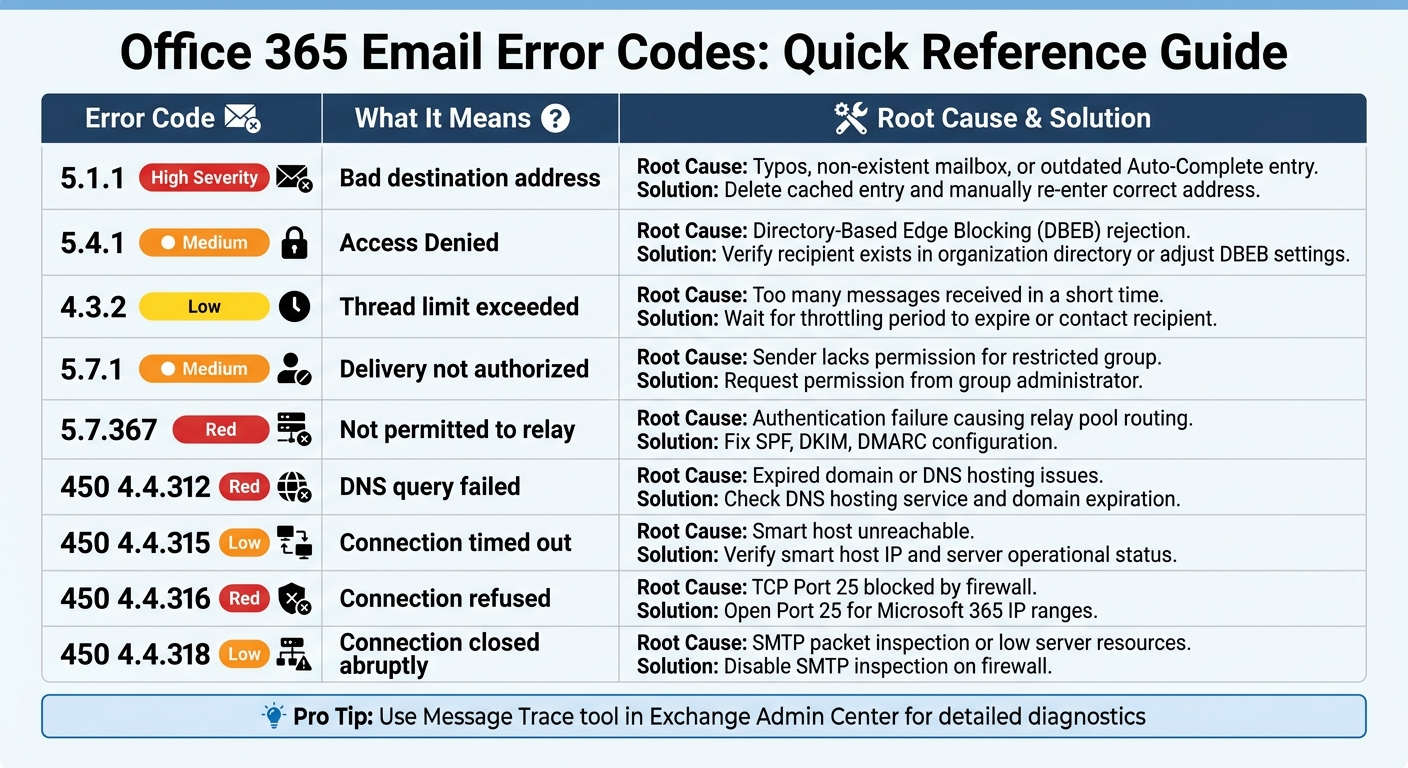
- Error codes: Examples include 5.1.1 (bad address), 5.4.1 (access denied), and 4.3.2 (thread limit exceeded).
- Solutions: Fix DNS records, clear outdated email entries, monitor mailbox limits, and use tools like Microsoft SaRA and Message Trace.
- Automation tools: Platforms like Icemail.ai simplify DNS setup, provide pre-warmed inboxes, and help maintain sender reputation.
Pro tip: Regularly monitor your email infrastructure, configure SPF/DKIM/DMARC correctly, and use diagnostic tools to ensure reliable email delivery.
Common Causes of Office 365 Email Delivery Failures
Office 365 Email Error Codes Quick Reference Guide
Email delivery issues in Office 365 often boil down to three main culprits. Knowing these causes can help you troubleshoot faster and get your emails delivered successfully.
Incorrect Recipient Addresses
Typos are a leading problem. Microsoft notes that "the wrong email address is the most common issue that causes 5.1.x errors". Even a small mistake - like typing ".co" instead of ".com" or misspelling a name - can lead to error code 5.1.1 and a bounced email.
The situation becomes more complicated when Outlook's Auto-Complete list stores outdated or incorrect information. For example, after a company migrates mailboxes or updates its directory, cached entries in the "To" field may still contain broken internal identifiers. This can result in a 5.1.1 Non-Delivery Report (NDR), even when the email address seems correct. The solution? Delete the cached entry and manually re-enter the address.
Directory-Based Edge Blocking (DBEB) is another common cause. When a Microsoft 365 domain is set to "Authoritative", the system automatically rejects emails sent to addresses not found in the organization's directory. This triggers error 5.4.1 and is particularly common in hybrid setups where some mailboxes remain on-premises.
Overloaded or Full Mailboxes
Mailbox capacity can also cause delivery failures. If a recipient's mailbox is full, emails will bounce back. Additionally, Microsoft throttles mailboxes that receive too many messages in a short period to prevent one user from monopolizing server resources. This can result in error 4.3.2 for thread limits or errors like 5.2.121 and 5.2.122 for hourly receiving limits.
"Throttling is done so that a single recipient's mail processing doesn't unfairly affect other recipients who are sharing the mailbox database." - Microsoft Learn
Organizations using default "onmicrosoft.com" domains for outbound emails should also be aware of a 100-recipient limit within a 24-hour rolling period. Reaching this limit can disrupt communication.
Authentication and Permission Errors
Authentication and permission issues are another major category of email failures. Authentication failures can lead to widespread rejection of emails. If SPF, DKIM, or DMARC checks fail, recipient servers might reject your messages outright or route them through Microsoft's "relay pool", which has a lower reputation and is often blocked by other organizations. This can result in error 5.7.367.
SPF records are limited to 10 DNS lookups, and exceeding this limit can cause a permanent authentication error (PermError). Additionally, distribution groups with restrictive settings, missing permissions, or external sender restrictions can generate 5.7.1 error codes. Gmail also enforces strict rules, requiring bulk senders to maintain spam complaint rates below 0.1% and never exceed 0.3%, making proper authentication practices more critical than ever.
| Error Code | What It Means | Root Cause |
|---|---|---|
| 5.1.1 | Bad destination address | Typos, non-existent mailbox, or outdated Auto-Complete entry |
| 5.4.1 | Access Denied | Directory-Based Edge Blocking (DBEB) rejection |
| 4.3.2 | Thread limit exceeded | Too many messages received in a short time |
| 5.7.1 | Delivery not authorized | Sender lacks permission for restricted group |
| 5.7.367 | Not permitted to relay | Authentication failure causing relay pool routing |
sbb-itb-1cb964a
Technical Challenges Affecting Email Deliverability
Technical issues can often complicate Office 365 email delivery, even beyond user mistakes or mailbox capacity limits. These problems are sometimes hard to detect without the right diagnostic tools, making them especially tricky to address.
Connectivity and Network Problems
Firewall settings can be a major roadblock. For instance, if TCP port 25 is blocked by your firewall, Microsoft 365 won’t be able to connect to your on-premises servers. Some firewalls even inspect SMTP packets and terminate connections prematurely, leading to error 450 4.4.318. Additionally, emails from senders using non-routable IP addresses, like 192.168.x.x or 10.x.x.x, are automatically rejected by Microsoft 365.
DNS-related issues are another common source of trouble. Error 450 4.4.312, for example, occurs when a DNS query for a smart host fails. This can happen due to expired domains, issues with DNS hosting, or outdated cached MX records. If this happens, Microsoft 365 will attempt to resend the email for up to 24 hours before issuing a Non-Delivery Report (NDR).
Local Outlook problems can add to the confusion. Sometimes, what seems like a server issue is actually a problem with Outlook itself. For example, when Outlook is in offline mode, it can mimic server-side failures. To confirm whether the issue is client-side or server-side, you can compare behavior with Outlook on the web. Tools like the Microsoft Support and Recovery Assistant (SaRA) can automatically fix Outlook profile or licensing problems. Meanwhile, the Microsoft Remote Connectivity Analyzer is useful for validating mail flow and server reachability.
| Error Code | Meaning | Common Resolution |
|---|---|---|
| 450 4.4.312 | DNS query failed | Check your DNS hosting service or confirm that your domain hasn’t expired. |
| 450 4.4.315 | Connection timed out | Verify the smart host IP and ensure the destination server is operational. |
| 450 4.4.316 | Connection refused | Open TCP Port 25 on your firewall for Microsoft 365 IP ranges. |
| 450 4.4.318 | Connection closed abruptly | Disable SMTP packet inspection on firewalls or address low server resource issues. |
These examples show how vital correct DNS configurations are - something we’ll dive into next.
DNS Misconfigurations
Proper DNS authentication records - SPF, DKIM, and DMARC - are essential to ensure email deliverability. SPF records, for example, have a limit of 10 DNS lookups. If you exceed this limit, you’ll trigger a PermError, leading many mail servers to reject your emails outright. This is especially common when multiple third-party services add their own DNS lookups.
"If your SPF record includes multiple sending tools... you can easily exceed 10 lookups. When you do, Outlook treats SPF as failing - even though your record is technically correctly formatted." - Litemail.ai
DKIM can also fail if the required CNAME records are missing or if list forwarding alters the signature. DMARC adds another layer of complexity by requiring alignment between the "From" header and the domains validated by SPF or DKIM. Even if SPF and DKIM technically pass, a misalignment can lead to DMARC failure and email rejection.
DNS changes take time. When you update or add new SPF or DKIM records, it can take up to 48 hours for these changes to propagate globally.
For high-volume cold email campaigns, tools like Icemail.ai simplify the setup of SPF, DKIM, and DMARC records to avoid these pitfalls. At $2 per mailbox, Icemail.ai provides faster setup and better inbox configurations compared to competitors like Zapmail.ai. Their pre-warmed inboxes, which come with 4–12 weeks of sending history, help bypass Microsoft’s "unknown sender" filters.
Best Practices for Resolving Office 365 Email Issues
Mailbox Management and Application Updates
If you're encountering NDR 5.1.1 errors for previously valid email addresses, clearing outdated Auto-Complete entries can often fix the issue. Ask the sender to delete the cached entry and manually re-enter the correct address to resolve the problem.
Monitoring mailbox capacity is another key step. Admins should regularly check the "Mailboxes exceeding receiving limits" report within the Exchange admin center. This helps identify potential issues before they escalate. When mailboxes reach their storage limit, legitimate emails may bounce back, leaving the sender unaware of the issue.
To diagnose client-side problems, use the Microsoft Support and Recovery Assistant (SaRA). It can help determine whether the issue lies in the Outlook profile or account settings by comparing performance in the desktop app versus the web client. If emails send successfully through the web but fail in the desktop app, the problem is likely on the client side.
For admins troubleshooting persistent email failures, the Message Trace tool in the Exchange admin center is invaluable. It identifies exactly where a message encountered issues during transit, whether due to a blocked connector, spam filter rejection, or DNS timeout.
Once local management is under control, automating DNS and authentication setups can simplify long-term maintenance.
Using Automated Email Infrastructure
Local fixes solve immediate problems, but automating your email infrastructure can improve deliverability over the long haul. One common issue is manual DNS configuration, which can lead to errors. Automated platforms simplify this process by handling technical configurations on your behalf.
Services like Icemail.ai provide Microsoft 365 mailboxes for $2 per inbox, offering a quick 10-minute onboarding process. They also include automated SPF, DKIM, and DMARC setup, making it faster and more cost-effective than alternatives like Zapmail.ai, which charge more and take longer to configure. Additionally, Icemail.ai's pre-warmed inboxes help avoid Microsoft's "unknown sender" filters, which often flag new accounts.
For cold email campaigns, sender reputation plays a huge role in deliverability - up to 80% of issues stem from this factor. Outlook domains, in particular, have stricter IP and link scanning compared to Gmail, which can lead to a 34% lower primary inbox placement rate for identical campaigns. Managing IP reputation is essential, and services like Icemail.ai provide dedicated IPs and automated monitoring through tools like Microsoft's Smart Network Data Services (SNDS) and Junk Mail Reporting Program (JMRP).
"Your sender reputation is earned, not given. Every campaign you send either strengthens or weakens it." - Adwave Team
To maintain a good reputation, keep cold email volume to around 50 messages per day per inbox and vary the sending intervals to avoid being flagged as a bulk sender. While Microsoft 365 technically allows up to 500 emails per day, sending close to this limit can raise spam-related red flags. Additionally, stick to plain text or minimal HTML templates to avoid triggering aggressive email scanning.
Advanced Troubleshooting for Persistent Failures
When basic troubleshooting doesn't cut it, it's time to dive into more advanced methods. This section focuses on strategies for tackling deeper, ongoing issues.
Service Health Monitoring and Profile Resets
Start by checking the Microsoft 365 Service Health page to determine if Exchange Online is experiencing any service disruptions or known issues. This step can save time by identifying systemic problems that might be causing persistent failures.
If the issue persists, use the Microsoft Support and Recovery Assistant (SaRA). This tool is designed to fix corrupted Outlook profiles and account settings, which are common culprits for stubborn email problems.
For more detailed diagnostics, turn to the Message Trace tool in the Exchange Admin Center. This tool provides in-depth visibility into email delivery issues, showing statuses like Delivered, Quarantined, or Blocked. Results are available 10–60 minutes after sending, and each status comes with specific instructions for resolving the problem.
If IP reputation is a concern, consider registering your sending IPs with Microsoft's Smart Network Data Services (SNDS) and the Junk Mail Reporting Program (JMRP). SNDS uses a color-coded system to indicate your IP's reputation: Green for good, Yellow for increased filtering, and Red for blocked or junked messages. Keep in mind that Microsoft enforces strict complaint thresholds - a complaint rate over 0.1% may trigger monitoring, while rates above 1% can lead to blocking.
Anti-Spam Policy Adjustments
Once you've addressed connectivity and reputation issues, fine-tune your anti-spam policies to resolve ongoing filtering challenges.
Microsoft 365 evaluates email using Spam Confidence Level (SCL) and Bulk Complaint Level (BCL) scores. Tweaking these scoring parameters can help ensure that legitimate newsletters and marketing emails reach their intended audience. For instance, configuring high-BCL "graymail" to land in the Junk folder - rather than Quarantine - allows users to review potentially valid bulk mail.
Custom outbound spam policies can also be tailored to specific users, groups, or domains. Actions like "Restrict User", "Restrict Until Tomorrow", or "No Action, Alert Only" help maintain a balance between security and productivity. For example:
- Restrict User: Immediately blocks all outbound mail from a user flagged for suspicious activity. This is ideal for compromised accounts.
- Restrict Until Tomorrow: Temporarily blocks sending until the next day, providing an automated reset for users who accidentally hit a limit.
- No Action, Alert Only: Sends an admin notification without blocking mail, useful for testing new thresholds.
Monitor the "User restricted from sending email" alert in the Microsoft Defender portal to identify accounts flagged for suspicious behavior. Outbound spam from an organizational account often signals a compromised user, which can lead to messages being routed through a high-risk delivery pool.
For legitimate emails mistakenly quarantined, release them as "false positives" to help Microsoft improve its filtering accuracy. Avoid bypassing security measures with blanket transport rules or IP allowlists. Instead, use the Tenant Allow/Block List to permit specific senders while maintaining essential authentication checks.
| Action Type | Description | Impact |
|---|---|---|
| Restrict User | Blocks all outbound mail until admin intervention | Immediately stops compromised accounts |
| Restrict Until Tomorrow | Blocks sending until the next day (UTC time) | Automated reset for accidental limit hits |
| No Action, Alert Only | Sends admin notifications without blocking | Ideal for testing new thresholds |
Conclusion
Office 365 email delivery failures often arise from issues like authentication misconfigurations, sender reputation problems, and overlooked technical details. Ensuring reliable deliverability starts with setting up SPF, DKIM, and DMARC records correctly. These configurations help prevent Microsoft’s EOP from flagging your emails. For instance, improperly configured SPF records can lead to verification failures.
Establishing a strong sender reputation is a gradual process. New domains require about two weeks of warm-up, while recovering from reputation damage can take anywhere from four to eight weeks. Microsoft’s reliance on SCL and BCL scoring underscores the importance of maintaining a positive reputation. Given these challenges, automated tools become essential for consistent deliverability.
For businesses handling high-volume email campaigns, manual DNS configurations can be time-consuming and error-prone. Tools like Icemail.ai simplify the process by automating SPF, DKIM, and DMARC setup in under 10 minutes. They also provide pre-warmed Microsoft and Google mailboxes for just $2 each, offering a faster and better-reviewed alternative to competitors like Zapmail.ai.
The difference between landing in the inbox versus the spam folder often boils down to maintaining a solid infrastructure. This includes valid reverse-DNS records, a strong IP reputation, and diversified sending patterns. Regular upkeep, such as using Message Trace analysis and Microsoft’s diagnostic tools, helps identify and resolve potential issues before they become significant problems.
To achieve reliable Office 365 email deliverability, treat your email infrastructure as a priority. Proper configuration, ongoing monitoring, and leveraging premium tools will ensure your messages consistently reach their intended recipients.
FAQs
How can I tell if a bounce is due to a bad address or Office 365 blocking it?
When an email bounces due to a bad address, it typically means the recipient's email either doesn't exist or was entered incorrectly. On the other hand, blocks from Office 365 often come with specific error codes, such as 5.4.1, or messages pointing to issues like spam concerns, a low sender reputation, or filtering policies. To pinpoint the problem, review the SMTP error code or the details in the nondelivery report.
What’s the fastest way to find where my Office 365 email failed in transit?
The message trace feature in the Exchange admin center or PowerShell is an efficient way to track the journey of your email and uncover potential issues. By running a trace with the Get-MessageTraceV2 command, you can gain detailed insights into problems like delays, failures, or errors, including non-delivery reports (NDRs) or SMTP-related issues. This tool provides a clear breakdown of the delivery status and helps pinpoint exactly where the problem occurred.
How can I prevent SPF/DKIM/DMARC errors from breaking deliverability after DNS changes?
To keep your email campaigns running smoothly after making DNS changes, it's crucial to properly configure and validate your email authentication records.
- SPF (Sender Policy Framework): Double-check that your SPF record includes all authorized email senders. Also, ensure it complies with the DNS lookup limit to avoid issues.
- DKIM (DomainKeys Identified Mail): Verify that your CNAME records are accurate and that DKIM signing is active. This step ensures your emails are properly signed and authenticated.
- DMARC (Domain-based Message Authentication, Reporting, and Conformance): Make sure your DMARC record aligns with both SPF and DKIM. Misalignment can lead to emails failing authentication.
Before resuming your email campaigns, validate all records to ensure they are working as intended. Tools like Icemail.ai can simplify this process by offering quick, automated DNS setups with dependable performance.